The filter panel in user management has been completely reorganized. You can now exclude a profile or a subscription, choose between three layouts, set a duration within grouped criteria and see your active filters above the list.
Until now, the panel lined up dozens of checkboxes in two columns, and each duration had its own line: "Added > 3 months", "Added > 6 months", "Added > 12 months"… Targeting "everyone except one subscription" meant ticking all the others. The new panel opens on half of the screen, without hiding the list, and updates it with every click.
The full step-by-step guide is in the documentation: Filter the user list.
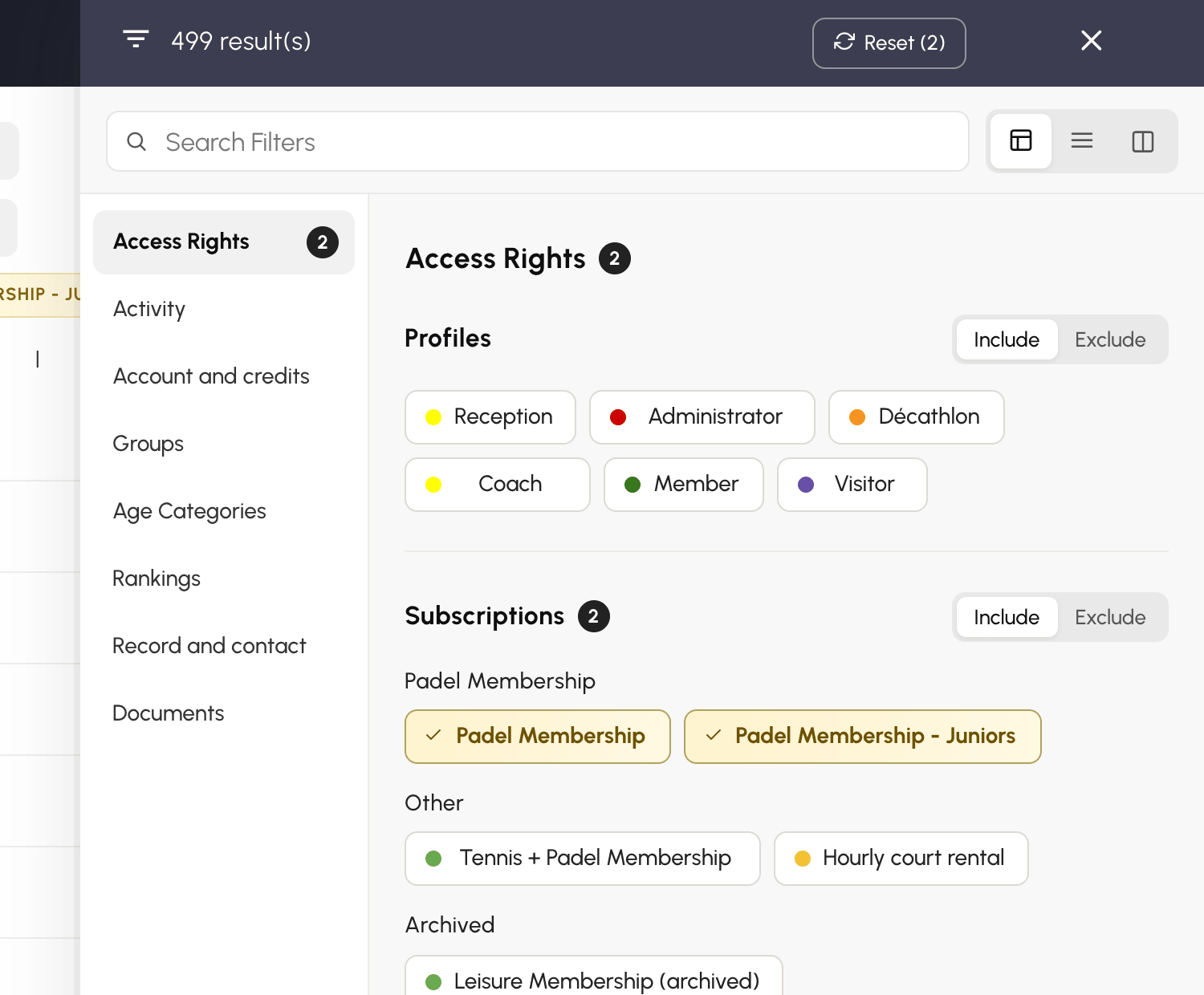
Three buttons, to the right of the filter search field, change the display:
The panel remembers the layout you chose. Sections have also been grouped: profiles and subscriptions are now together in Access Rights, and both rankings share the Rankings section.
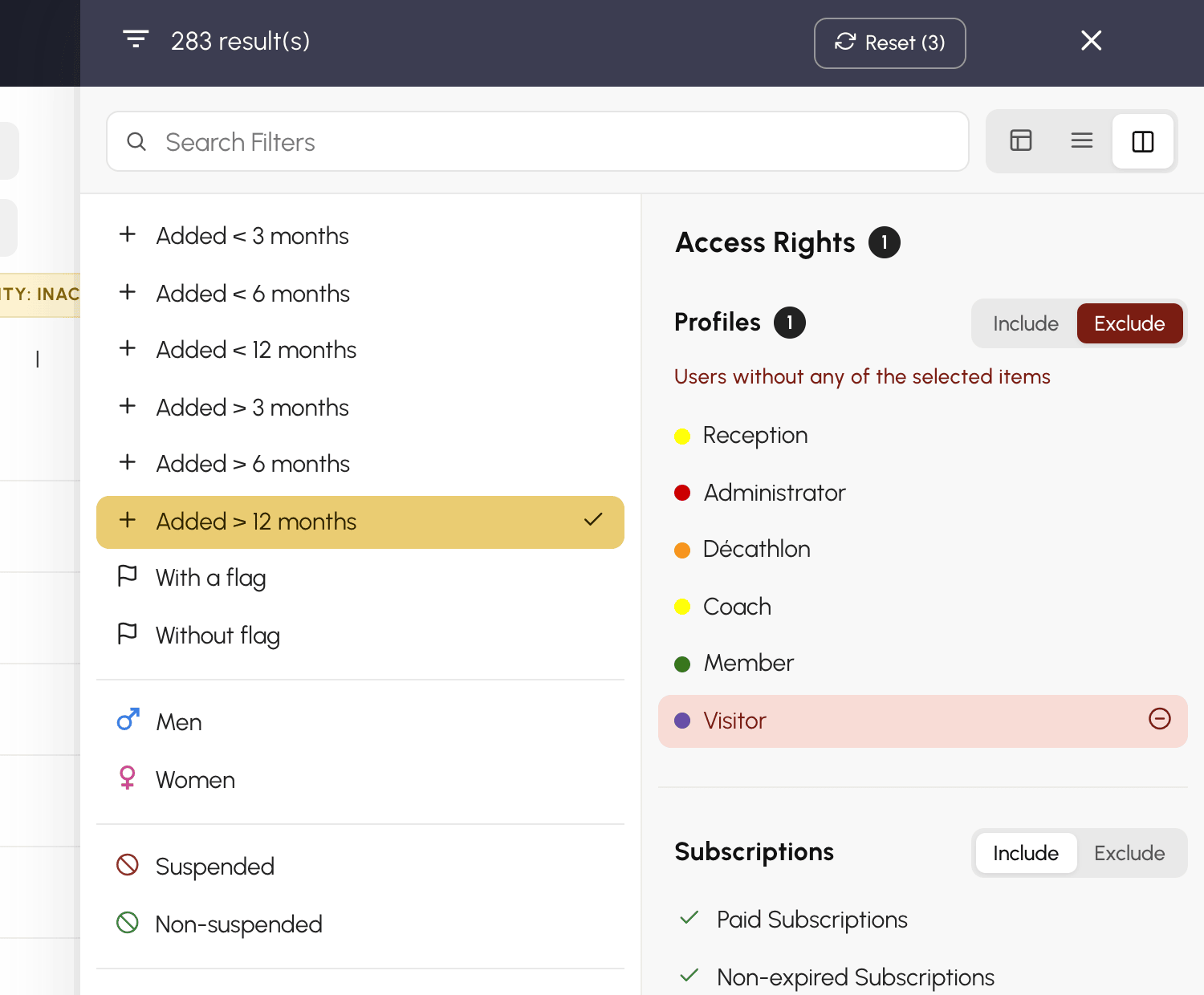
This new feature answers a request from a club. Each list, whether profiles, subscriptions, groups, age categories or rankings, now has its own Include / Exclude switch.
In Exclude mode, the ticked items turn red and the list keeps the users who have none of them. To write to all your users except visitors, tick the Visitor profile and switch the profile list to Exclude. Users without a subscription or without a date of birth are part of the result, since they have none of the excluded items.
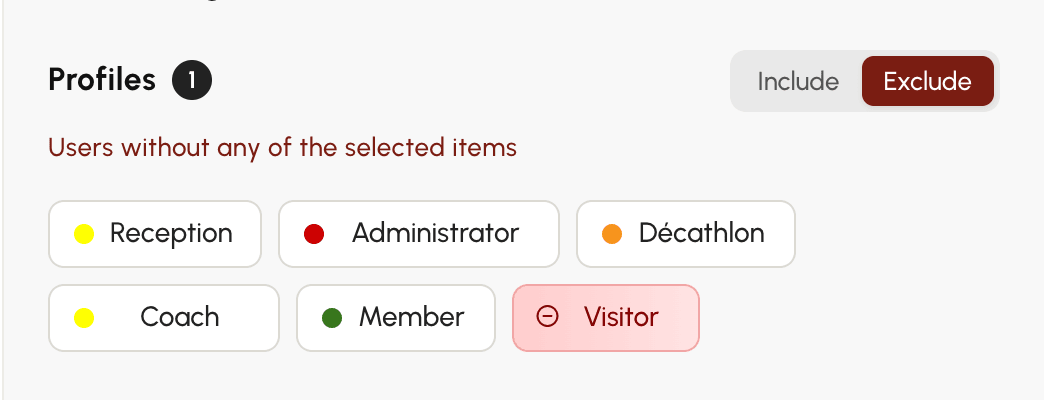
The setting works list by list: you can exclude a profile while including a subscription.
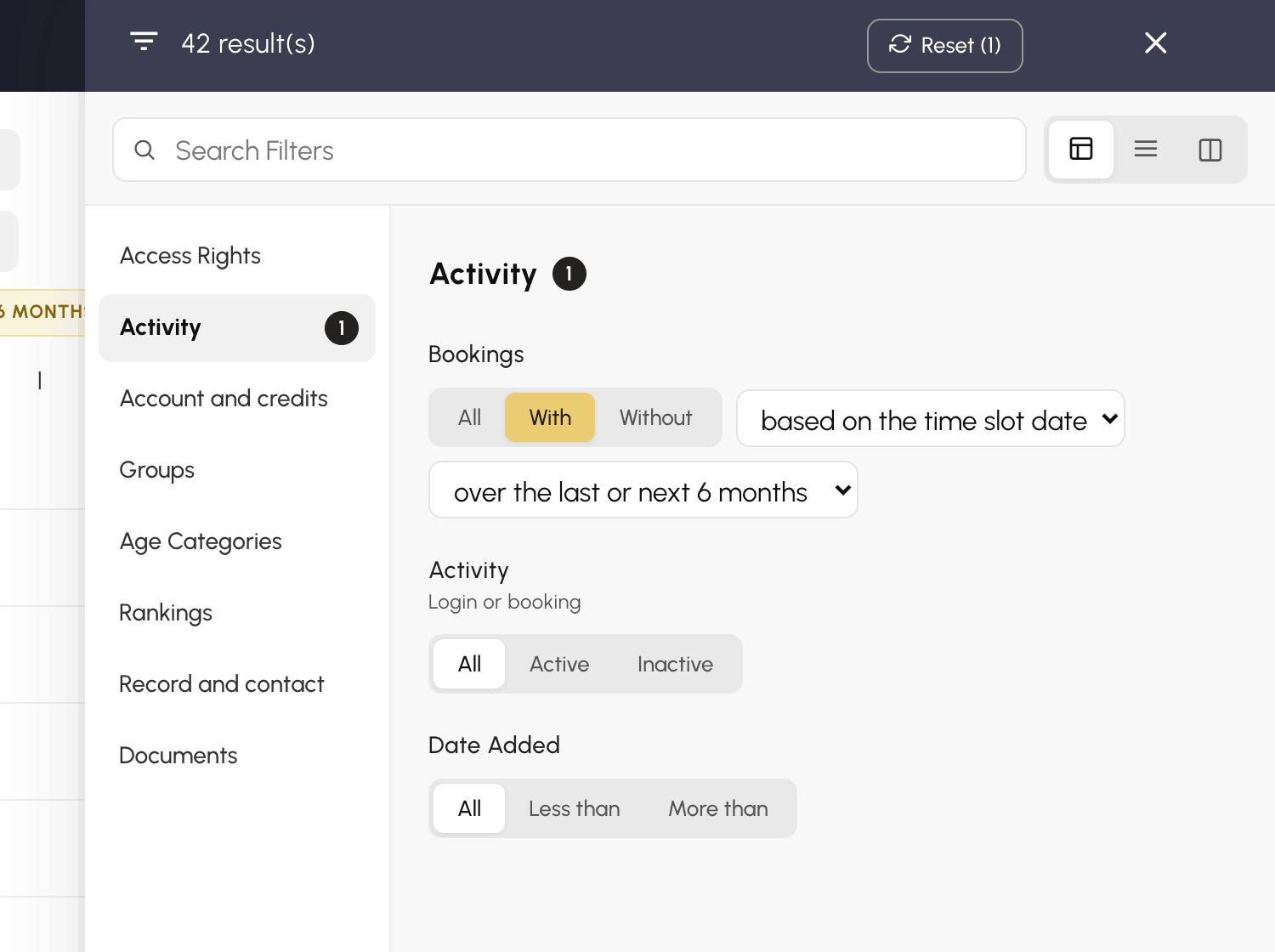
Filters that used to come in several lines are now combined into a single criterion, with a duration to choose. In the Activity section, for example:
A criterion keeps only one option at a time. It is therefore no longer possible to tick "active" and "inactive" together by mistake, two filters that cancelled each other out without warning.
Active filters are displayed above the user list, in yellow for an inclusion and in red for an exclusion. The cross on a pill removes that filter, and a click on the pill reopens the panel directly on the right section.
In the panel, Reset removes all filters at once, and Cancel restores them if you clicked too quickly. Your filters remain saved from one visit to the next.

A question or a suggestion? Our team is here to help.
The OpenResa team at your service!