On your online sign-up form, you can now arrange the subscriptions on offer in the order of your choice, with a simple drag and drop, and decide which subscription is selected by default. You can also select none, so that each new registrant makes their own choice.
Until now, subscriptions appeared in alphabetical order and the first one in the list was selected automatically. A subscription meant for juniors could end up at the top and be chosen by mistake by an adult in a hurry.
The full step-by-step guide is in the documentation: Open Online Registration.
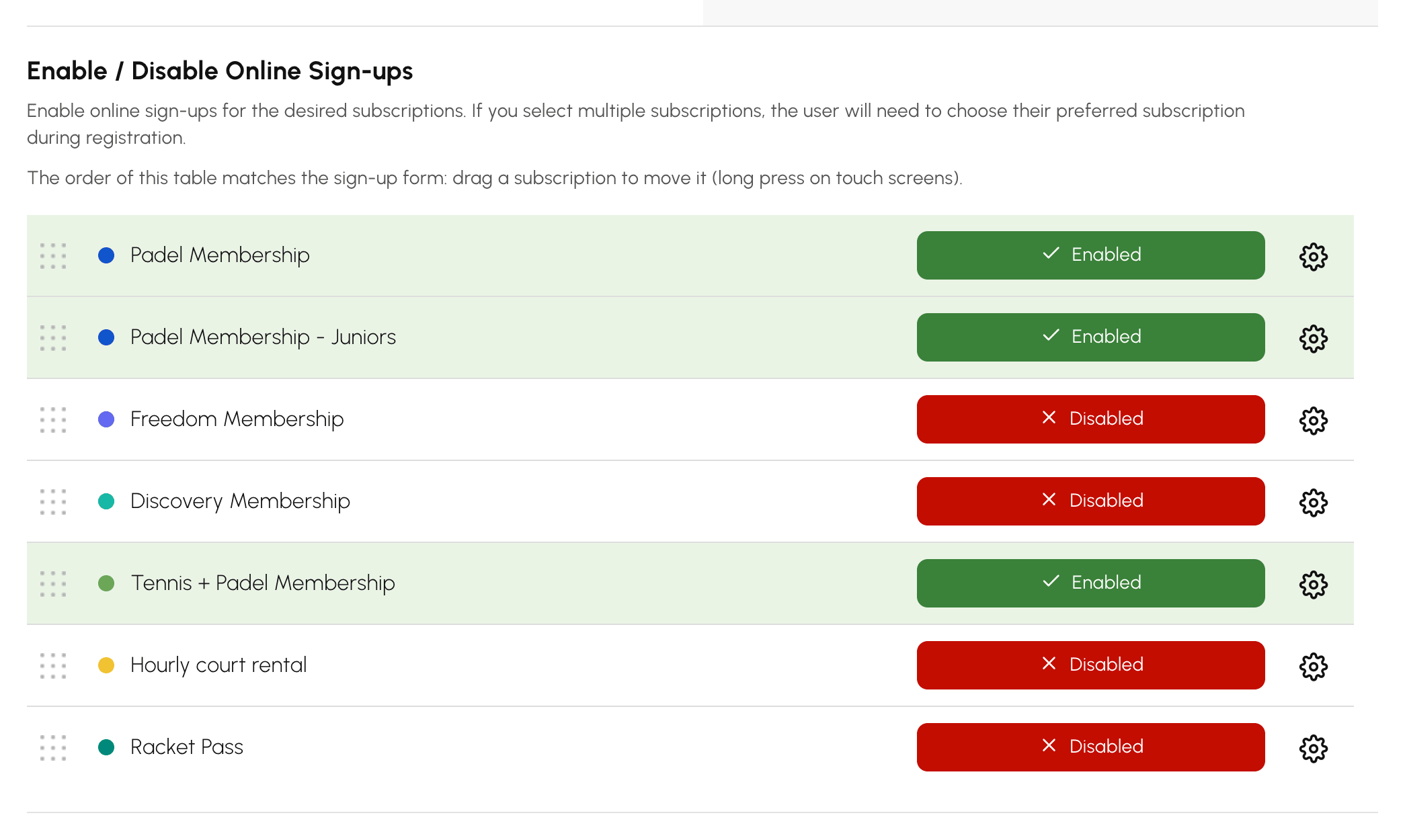
Go to Administration›Users›Online Sign-ups, then click Settings. In the Enable / Disable Online Sign-ups table, drag each subscription into place. The order is saved as soon as you release the subscription, and the form uses it right away. On a phone or tablet, press and hold the row to move it.
As long as you change nothing, the order stays alphabetical. A disabled subscription keeps its place, and a subscription created later is placed after the ones you have already arranged.
The Preselected subscription setting, just above the table, offers three options:
Confirm your choice with Save.
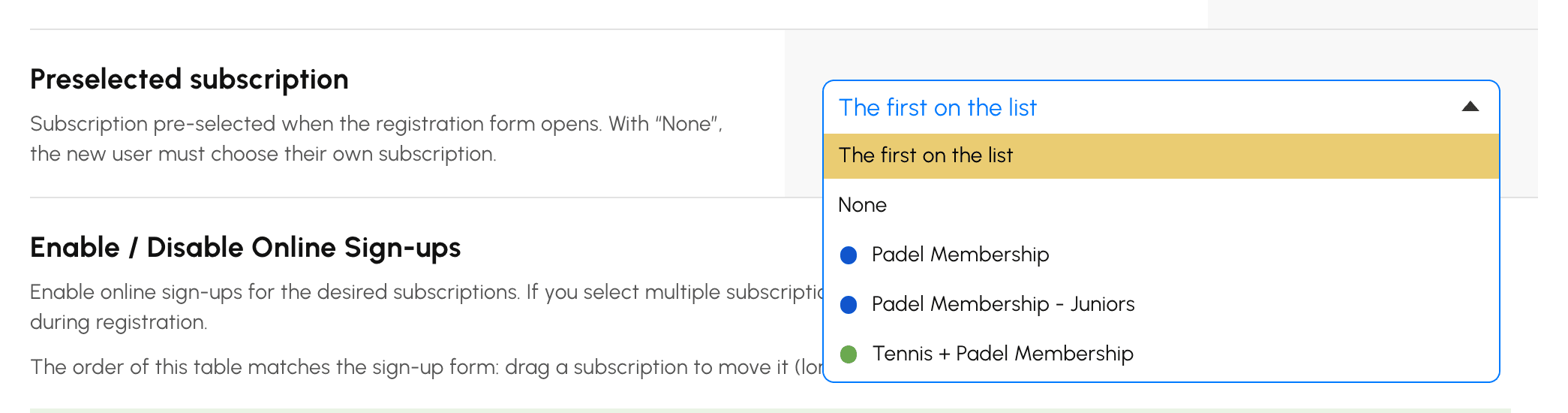
If the preselected subscription is later disabled or archived, the form goes back to selecting the first in the list. As long as you do not change these settings, your sign-up form stays the same: no action is needed on your part.
A question about this new feature? Our team is here to help.
The OpenResa team at your service!